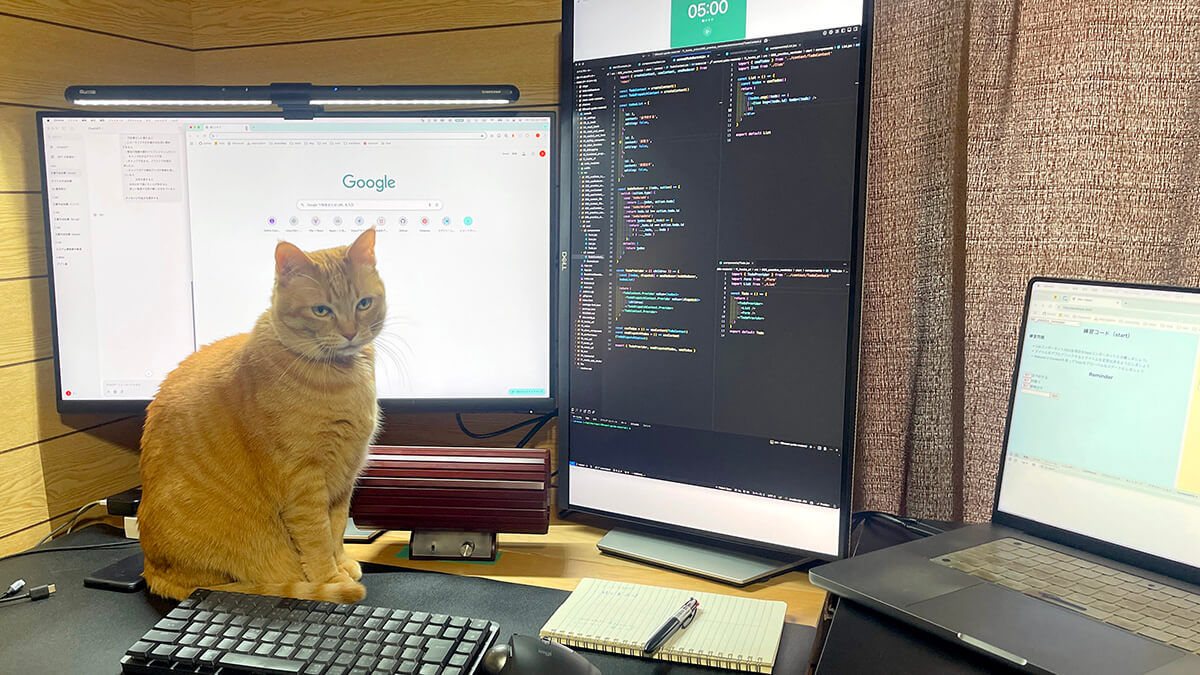
I resisted external monitors for years. I work from a MacBook Pro, I move around the house during the day, and being able to pick everything up and go somewhere else was the whole point.
Then I bought one 27-inch QHD panel, and within a few months I had bought a second. That was over a year ago and I am not going back. This is a long-term account of what two 27-inch QHD screens over USB-C actually changed about the work — and, since the exact model I own is no longer sold, what I would look for buying the same thing today.
Originally published in Japanese on May 5, 2025. This English version was written in September 2026.
On the model: the S2722DC is no longer available
The monitors in these photos are Dell S2722DC units, and you can no longer buy one from Dell. Checked on September 8, 2026, and the two regions word it differently: Dell Japan labels the page 販売終了 — end of sale — while Dell US shows only an “Unavailable” badge. Both offer alternatives instead of a buy button. Everything below is real long-term experience with that panel; treat it as a description of a class of monitor rather than a buying link.
The specification that mattered, and the one to shop for:
- 27 inch, 2560 × 1440 (QHD) — the resolution is the point, more than the diagonal
- USB-C with meaningful power delivery — 65 W on mine, enough to charge the laptop over the same cable that carries video
- A stand with height, tilt, swivel and pivot — the pivot is what makes a vertical second screen possible without buying an arm. On this model: 110 mm of height travel, pivot ±90°, swivel ±30°, tilt −5° to +21°
- IPS panel, 75 Hz, built-in 3 W stereo speakers, downstream USB ports on the back, 5.4 kg without the stand
Dell’s current equivalent is the S2725DC — Dell does not describe it as a successor, but it lines up almost item for item: 27 inch, 2560 × 1440, USB-C with 65 W power delivery, 3 W stereo speakers, the same height / tilt / swivel / pivot stand. The differences that matter: refresh rate goes from 75 Hz to 144 Hz, the video inputs change from two HDMI 1.4 ports to one HDMI 2.1 TMDS port plus one DisplayPort 1.4 (Dell’s own wording — TMDS, not the full-bandwidth FRL that “HDMI 2.1” often implies), and it gains a 15 W downstream USB-C port. It is also lighter, at about 4.6 kg without the stand.
Three nearby models are worth ruling out explicitly, because the names are close enough to catch people. The S2725DSM is the same panel without USB-C, which kills the one-cable arrangement described below. The S2725QC is 4K rather than QHD. And there is a separate S2725DS — one letter shorter, and not the same panel at all: Dell’s user guide gives it 100 Hz and 2 × 5 W speakers against the S2725DC’s 144 Hz and 2 × 3 W. Read the whole model number.
Whatever you buy, check the USB-C wattage against your laptop before anything else. That number varies a lot between models and it is the difference between one cable and three.
What two QHD screens actually bought me
I do web engineering, and I write — this blog and paid work. Either way I am looking at a screen most of the day, and for years the constraint was that I could see one thing properly at a time.
QHD rather than 1080p matters more than the extra panel does, at first. There is meaningfully more room both horizontally and vertically, so a browser and an editor can sit side by side without either being cramped into uselessness. Add the second screen and the whole working set — reference, code, design comp, spec, chat — stays visible simultaneously.
The layout I ran for most of the first year:
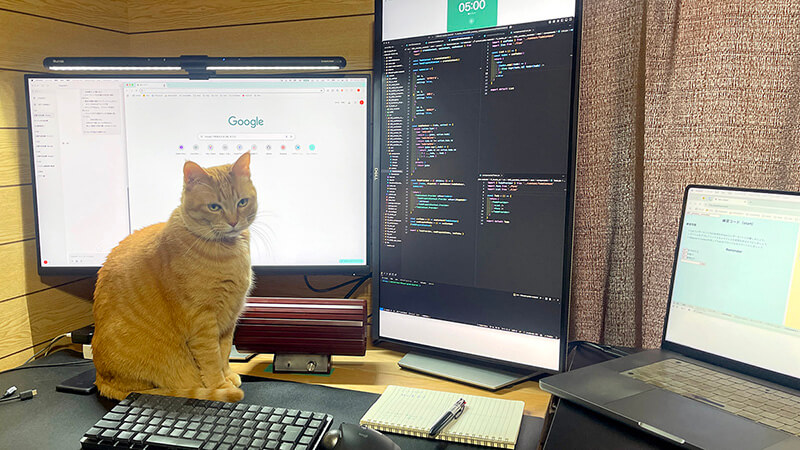
- Left screen, landscape: browser and an AI chat window
- Right screen, portrait: the editor — a rotated QHD panel shows a lot of code without scrolling, and this is the change I would most encourage anyone who writes code or long text to try
- The MacBook itself, to the right of that: overflow — the things I want running but not in my eyeline
Moving between three displays with a trackpad is worse than it sounds, so I use a window-management utility with keyboard shortcuts to jump the cursor between screens. Without something like that, a multi-monitor setup adds a small tax to every context switch and you feel it by the afternoon.
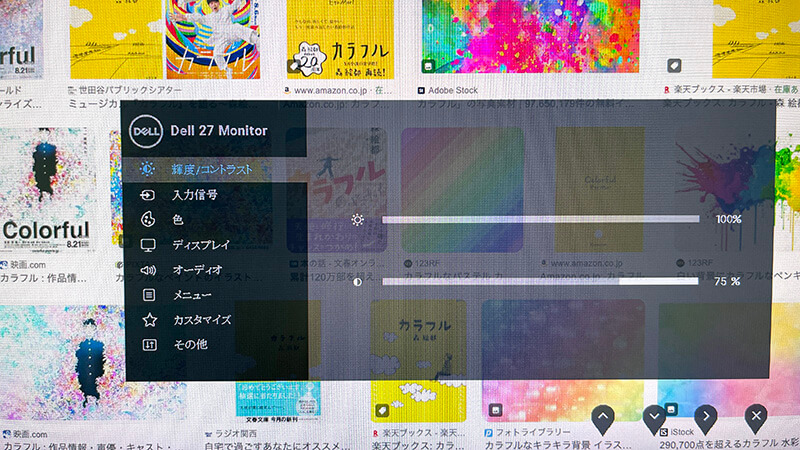
The honest summary of the productivity effect: I stopped losing the thread. The tabbing and window-shuffling that used to sit between “I need to check that” and actually checking it is gone. Once you have worked this way for a few weeks, going back to a single laptop screen feels like working through a letterbox.
One cable is the underrated feature
If you use a USB-C laptop, this is the part that changes daily life more than the screen area does.
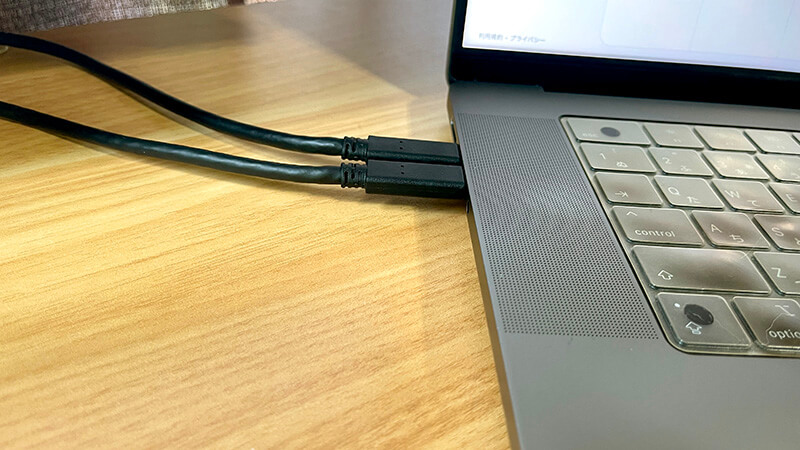
A single cable to the monitor carries video, audio, USB peripherals and 65 W of charge. Sit down, plug in one thing, everything is connected and the laptop is charging. There is no dock in the setup, and the monitor’s rear USB ports handle the accessories — the monitor light bar clipped to the top of the screen is powered from one of them, so it has no cable of its own reaching the desk.
With two monitors I still run two cables to the laptop, one per screen. Daisy-chaining would need DisplayPort MST, which macOS does not support, so on a Mac the two-cable arrangement is simply the answer. In practice it is two connectors instead of one and I stopped noticing.
The stand was good enough to delay buying an arm
I expected the included stand to be the usual afterthought. It was not — smooth height adjustment, and a pivot that actually works, which is what makes the portrait right-hand screen possible out of the box.
Getting the top of the screen to eye level made a noticeable difference to neck and shoulder fatigue. I have a tendency to hunch, and raising the panel corrects the posture without any conscious effort.

I did eventually add a dual monitor arm — not because the stands were bad, but because two stands consume a lot of desk. That is a later problem, though. The stands are good enough that solving it is optional rather than urgent.
Where it falls short
Color is fine, not special. For this price bracket, the IPS panel is accurate enough and comfortable over long sessions — natural color, wide viewing angles, low fatigue. For web work, documents and code it is a non-issue. I edit photos and do video as a hobby and have not been bothered, but if color work is your profession you want a wider-gamut panel and a calibration workflow, and this is not that monitor.
The speakers are a formality. 3 W per side. They make sound. Fine for a meeting in a pinch; I use separate speakers for anything else. Do not let built-in audio influence the buying decision at this level.
75 Hz is a desktop-work refresh rate. Slightly smoother than 60 and irrelevant for gaming. It was never the point here, but worth stating plainly.
A year on
What actually changed, in order of how much I care:
- Parallel work stopped being expensive. Multiple threads stay visible instead of stacked.
- Deciding what matters got faster, because more of the relevant information is in front of me at once.
- Less shoulder tension and eye strain — partly the screen height, partly the lighting I added at the same time, so I cannot cleanly separate the two.
- The desk looks like somewhere I want to sit, which is not nothing.
- And, since a cat lives here and reliably positions himself in front of whatever I am reading, having a second screen means work continues regardless.

The specific model is gone; the configuration is not. Two 27-inch QHD panels connected over USB-C with power delivery, at eye level. That is the thing worth copying, and it has held up for well over a year. The portrait rotation is worth trying and I ran it for a long time, but once a monitor arm made repositioning cheap I ended up back on two landscape screens.