I wanted to use Codex for a closer security review of code I am authorised to work on. Before doing that, I set up Daybreak Blue with a YubiKey 5C Nano, a tiny USB-C hardware security key.
Registering the key was not the end of the setup. I also had to prepare recovery methods, complete identity verification, sign back into the desktop app, and check the selected model. Even with GPT-6 Sol selected, Codex still asked me to sign in with the hardware key approved for Daybreak.
This is my setup record from November 15, 2026, on a personal account. It is not a promise that every account will show the same screens, or a benchmark comparing reviews with and without Daybreak. The screenshots use the Japanese interface; their English captions explain the step. Personal information has been obscured where needed.
What Daybreak Blue changes, and what it does not
OpenAI’s Daybreak overview describes Blue as an access tier for approved defensive security work. It reduces unnecessary refusals on supported general-purpose models. It does not remove every safeguard or grant permission to test someone else’s systems.
Ordinary Codex can already review code. My goal was to enable Blue for a bounded review of code I owned or was explicitly permitted to analyse. Daybreak Red has separate approval requirements and access to cyber-specialised models; I was not setting up Red.
Codex Security is another distinction worth keeping. Its documentation covers dedicated repository-scanning tools and Daybreak Defense Factory. This article records setup and a code review in ordinary Codex with Blue enabled, not a run of those dedicated scanners.
Read the sign-in and data conditions before buying a key
The individual setup requires an eligible paid plan, Advanced Account Security, and a supported FIDO2 hardware key. A synced passkey alone does not meet the Daybreak hardware-key requirement. Completing the checklist does not guarantee approval.
The data condition mattered to me. OpenAI’s data-controls guidance says interactions during personal-account Daybreak sessions may be used to improve models even when the general model-improvement setting is off.
I would not extend the general no-training description of Advanced Account Security to Daybreak sessions. Before supplying client information or confidential code, check the applicable agreement and organisational rules. Being able to access a feature does not mean a particular document is permitted input.
The 5C Nano is small enough to sit on a fingertip
I bought my YubiKey 5C Nano through Yahoo! Shopping in Japan. The photographs show the actual key I used, not product renders.
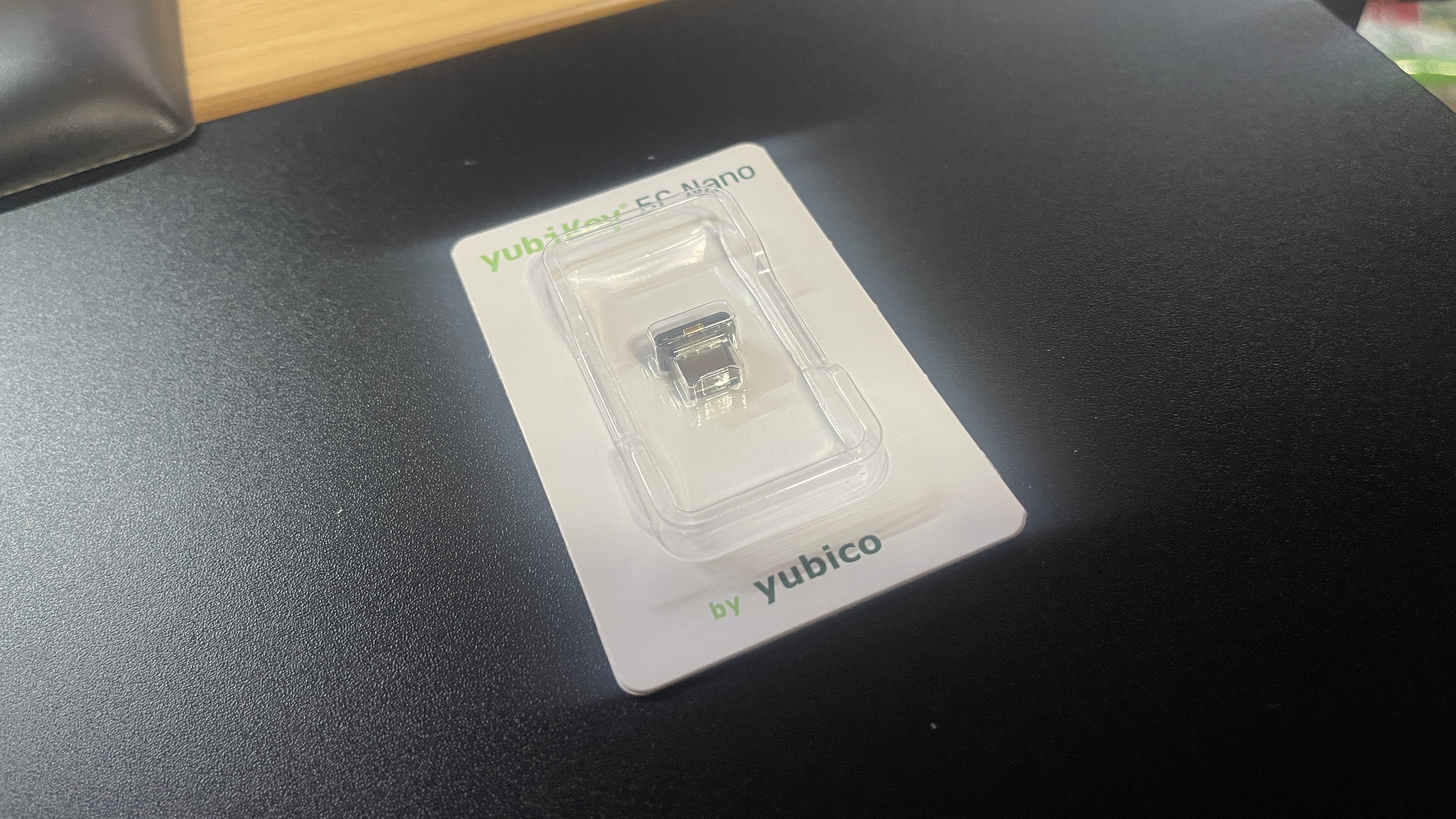
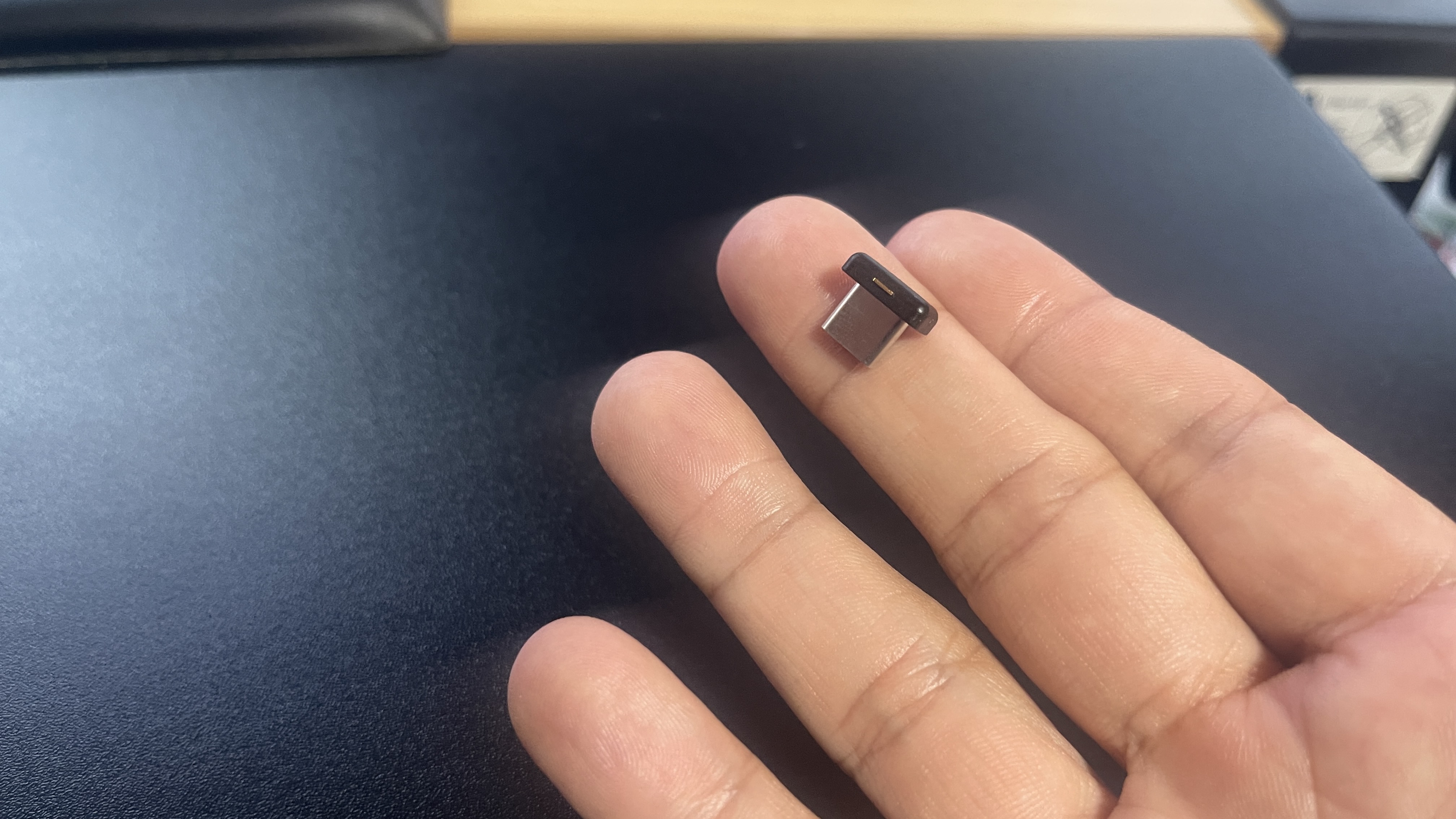
Connected to the Mac mini, it barely protruded from the USB-C port. That was convenient: I could touch the key when prompted without adding a large device to the desk.
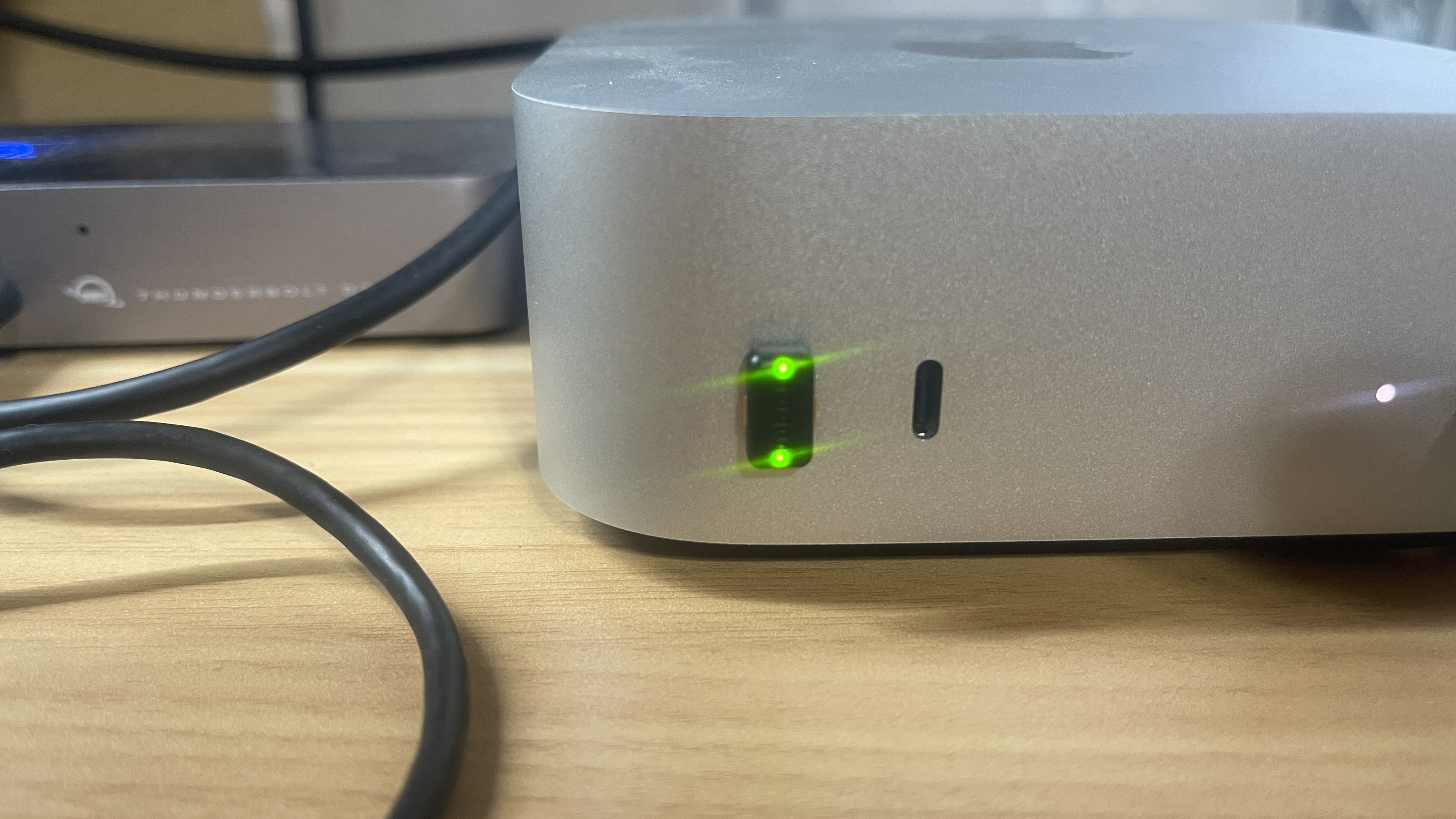
Yubico’s specifications list USB-C and FIDO2 support. The 5C Nano is not the 5C NFC and does not support NFC. If tapping a phone is part of your plan, do not choose by the “5C” name alone.
During registration, Chrome prompted me to set a new security-key PIN and touch the key. That PIN is separate from the account recovery code saved later. Neither value belongs in an article, screenshot, or AI request.
This is the model I used, not a Daybreak-specific required purchase. Check your device’s connector and OpenAI’s current hardware-key requirements before buying. I have left out the Japanese marketplace buttons in this English version.
Start with sign-in methods and recovery
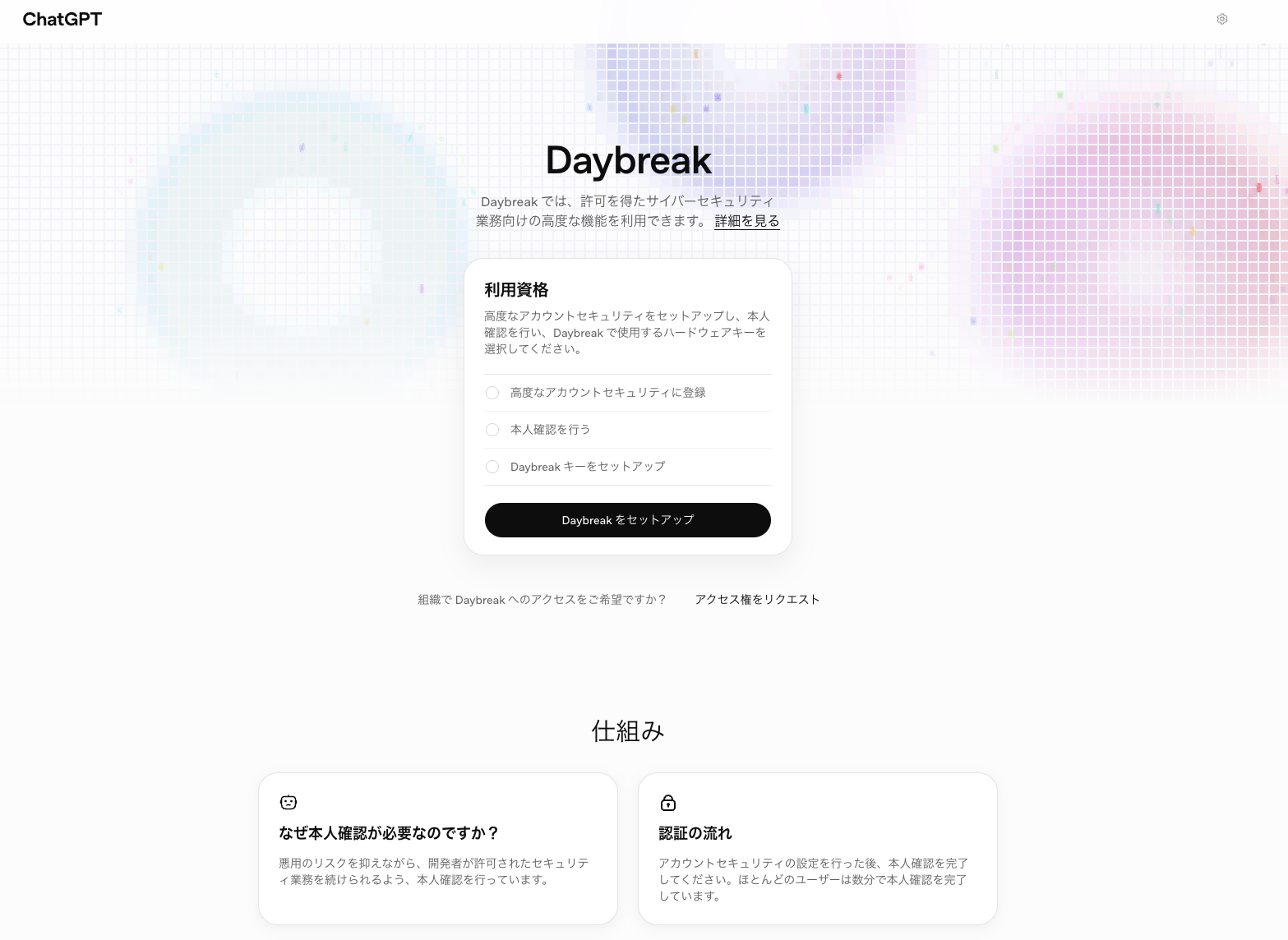
I used the Daybreak setup checklist as the starting point. At first, Advanced Account Security, identity verification, and hardware-key setup were unfinished.
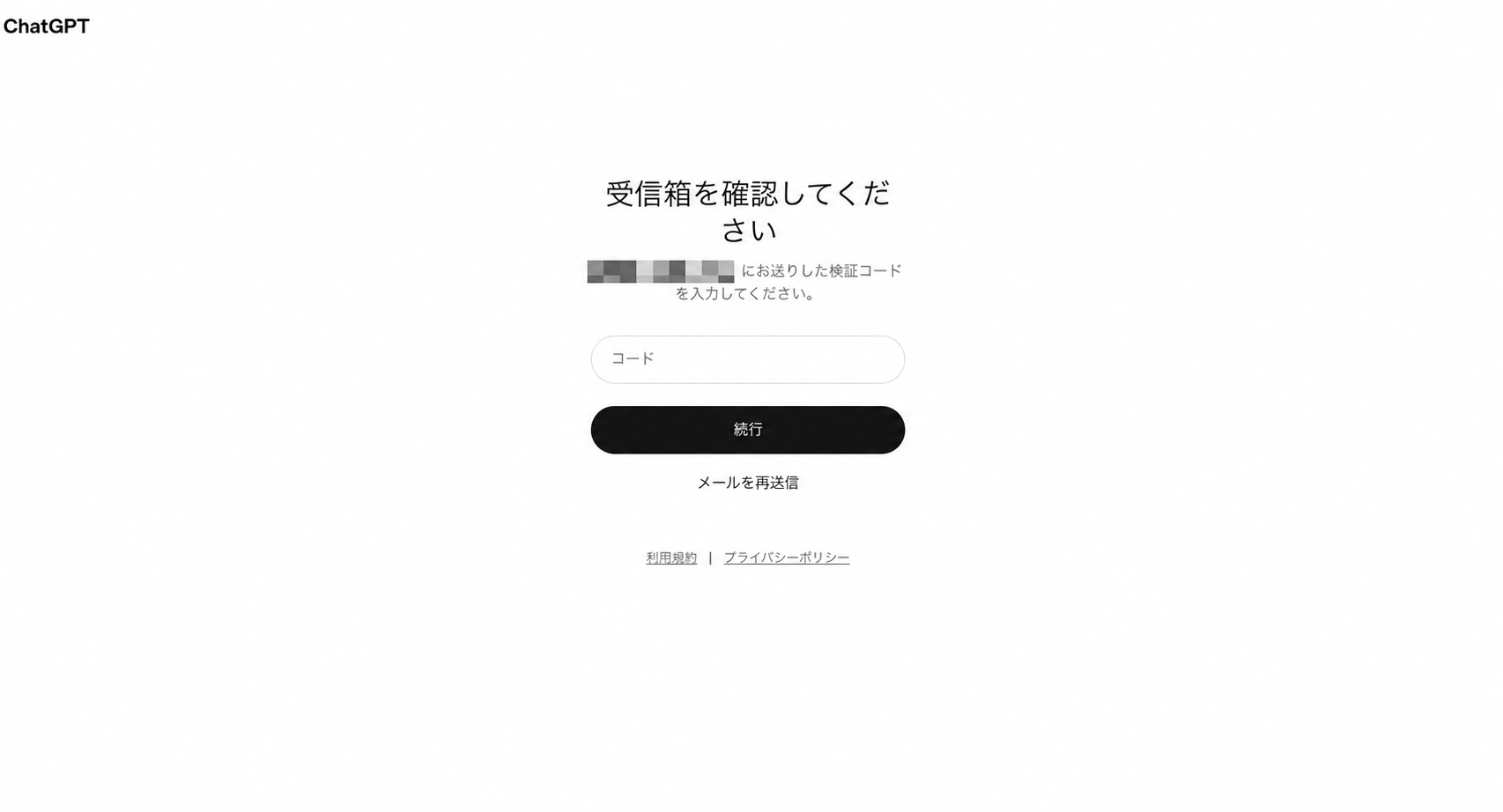
An email-verification screen appeared along the way. This was a check at this stage, not evidence that email-code sign-in would remain available after enrolment.
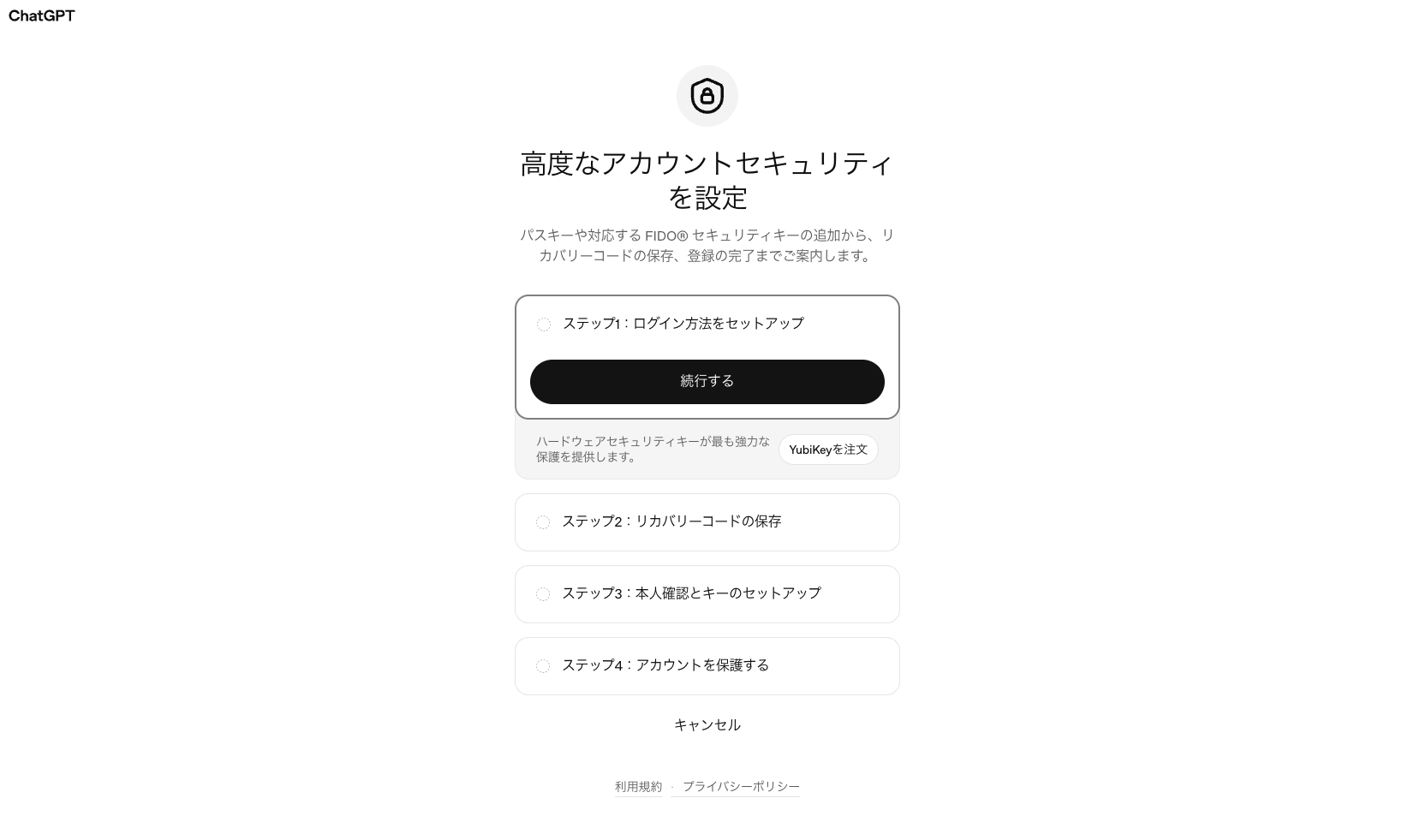
The Advanced Account Security flow then laid out the stages: sign-in methods, recovery-code storage, identity and key setup, and final enrolment. Preparing recovery was part of the process, not something to leave until after enabling it.
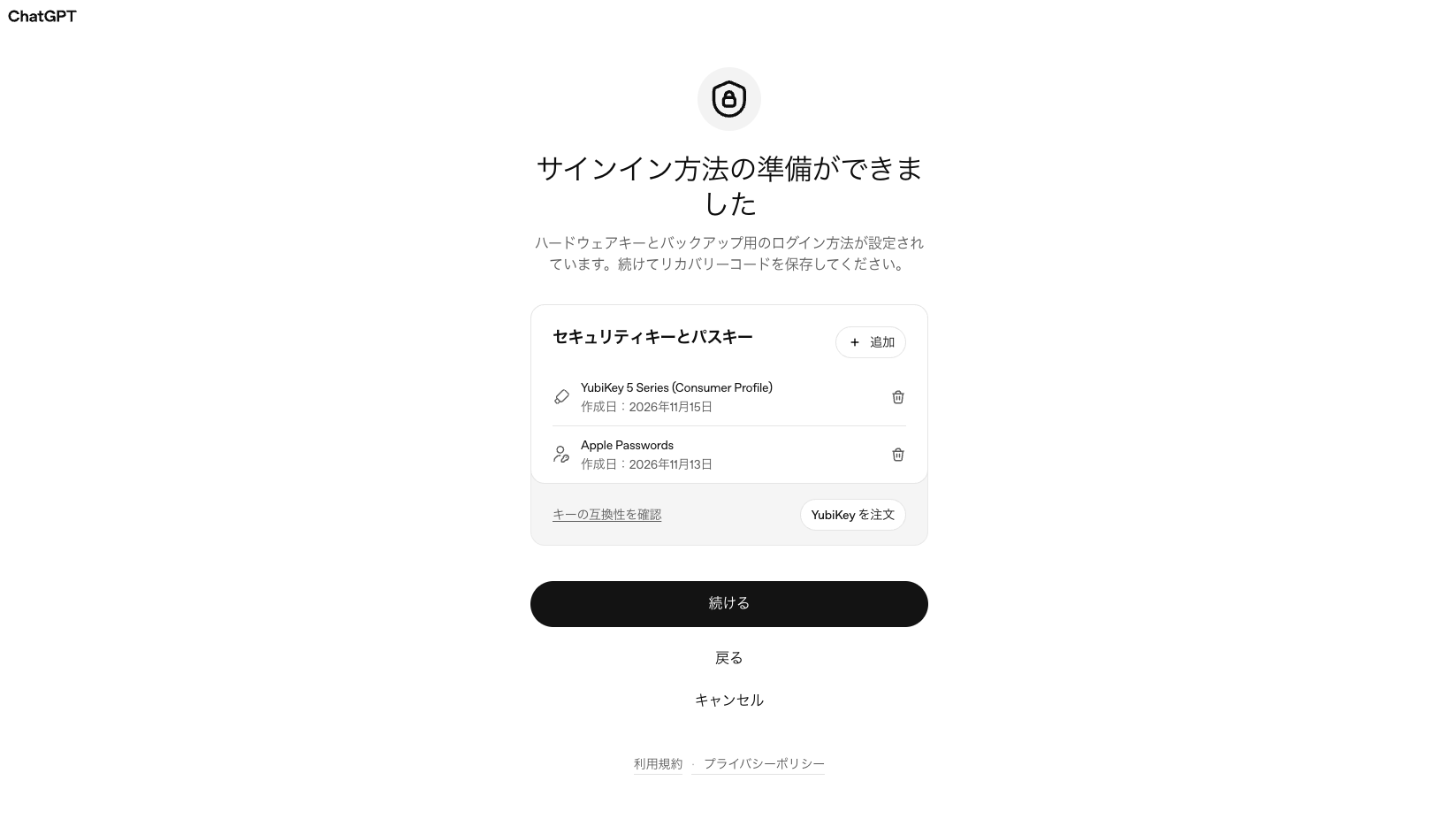
My screen listed both the YubiKey and Apple Passwords as sign-in methods. This does not mean everyone must buy a second identical hardware key. The requirement is to prepare qualifying sign-in methods and a safe recovery path.
Choosing a Daybreak key is separate from registering it for sign-in
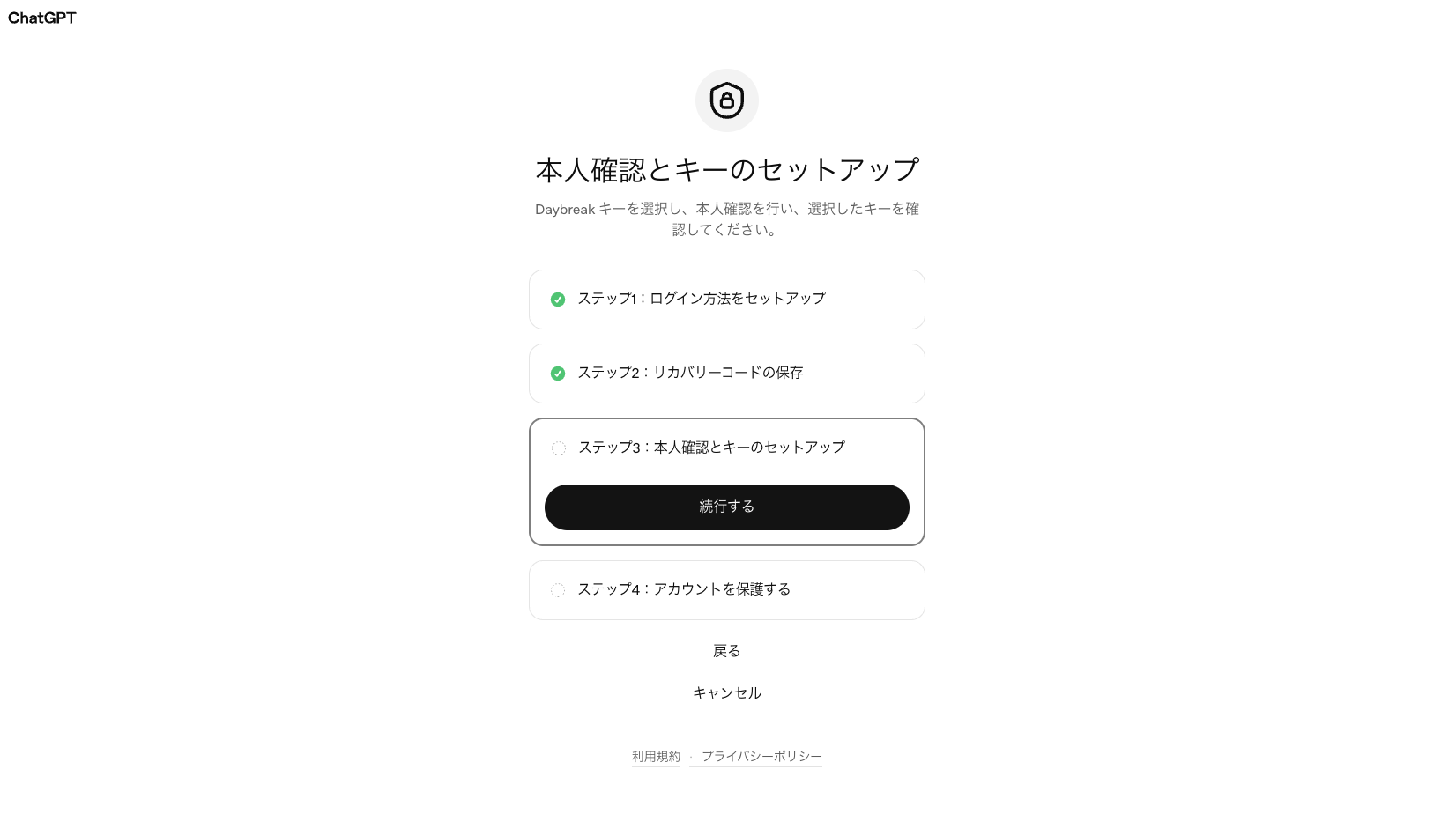
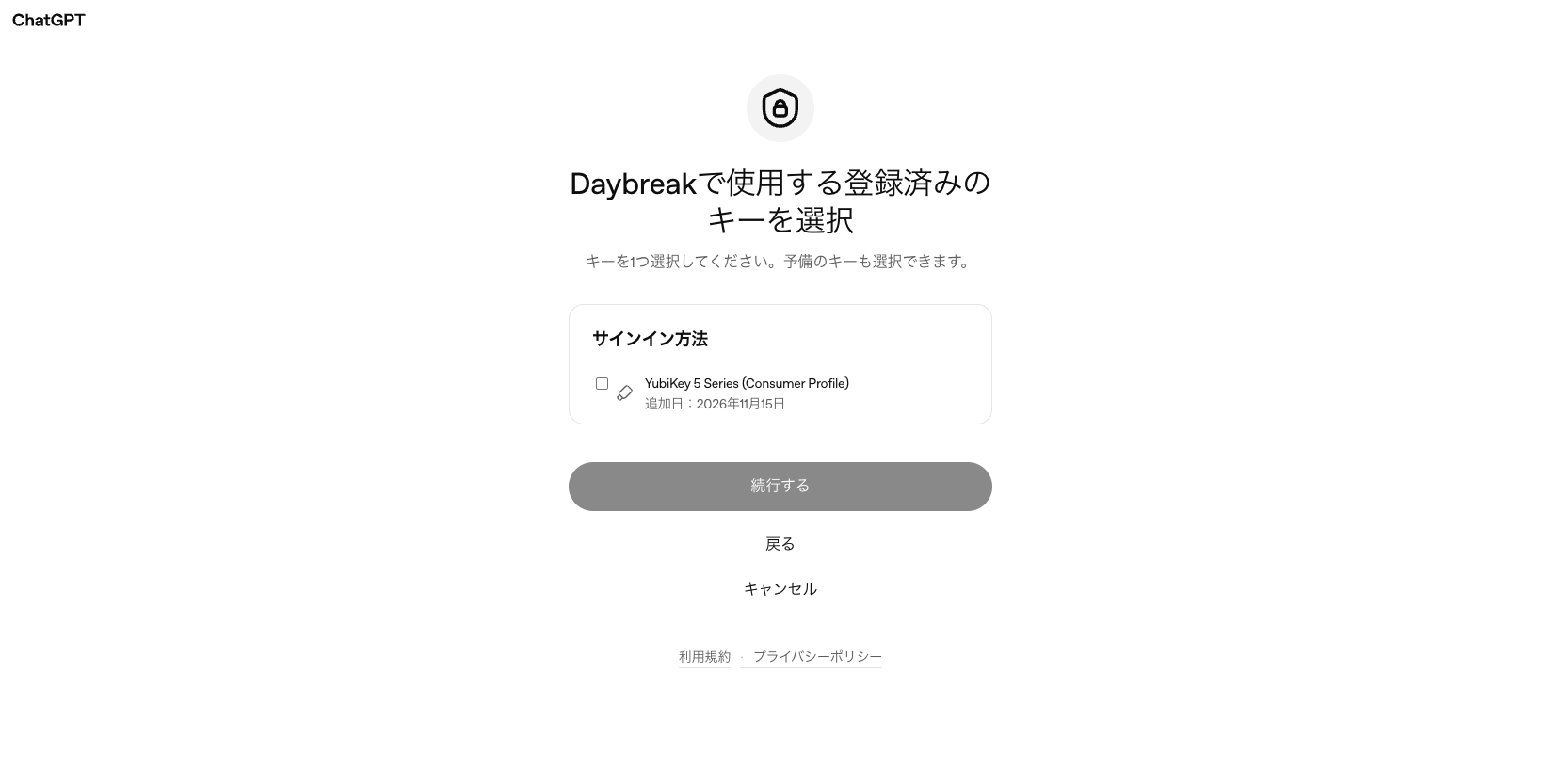
Once the sign-in and recovery items were checked off, the next stage was identity verification and key setup. Registering a YubiKey for account sign-in had not yet selected it for Daybreak.
The registered YubiKey appeared as a key I could select for Daybreak. In this screenshot it is not selected, so Continue is disabled. Having a registered key and choosing it for this purpose are different states.
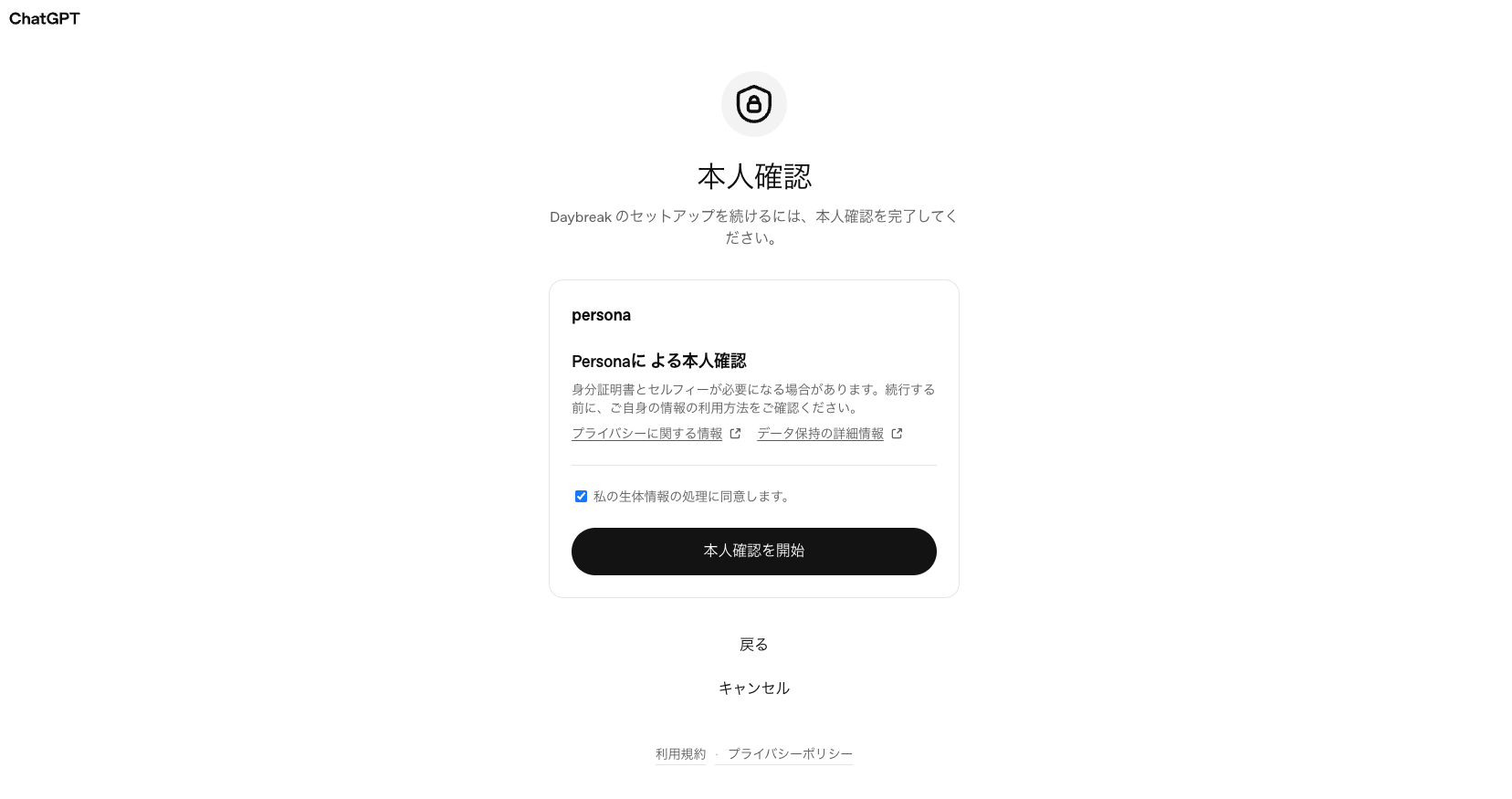
Identity verification opened a Persona screen. It included consent information about biometric processing. This is a point to read the terms and decide, not simply click through. Follow the requirements shown for your own account.
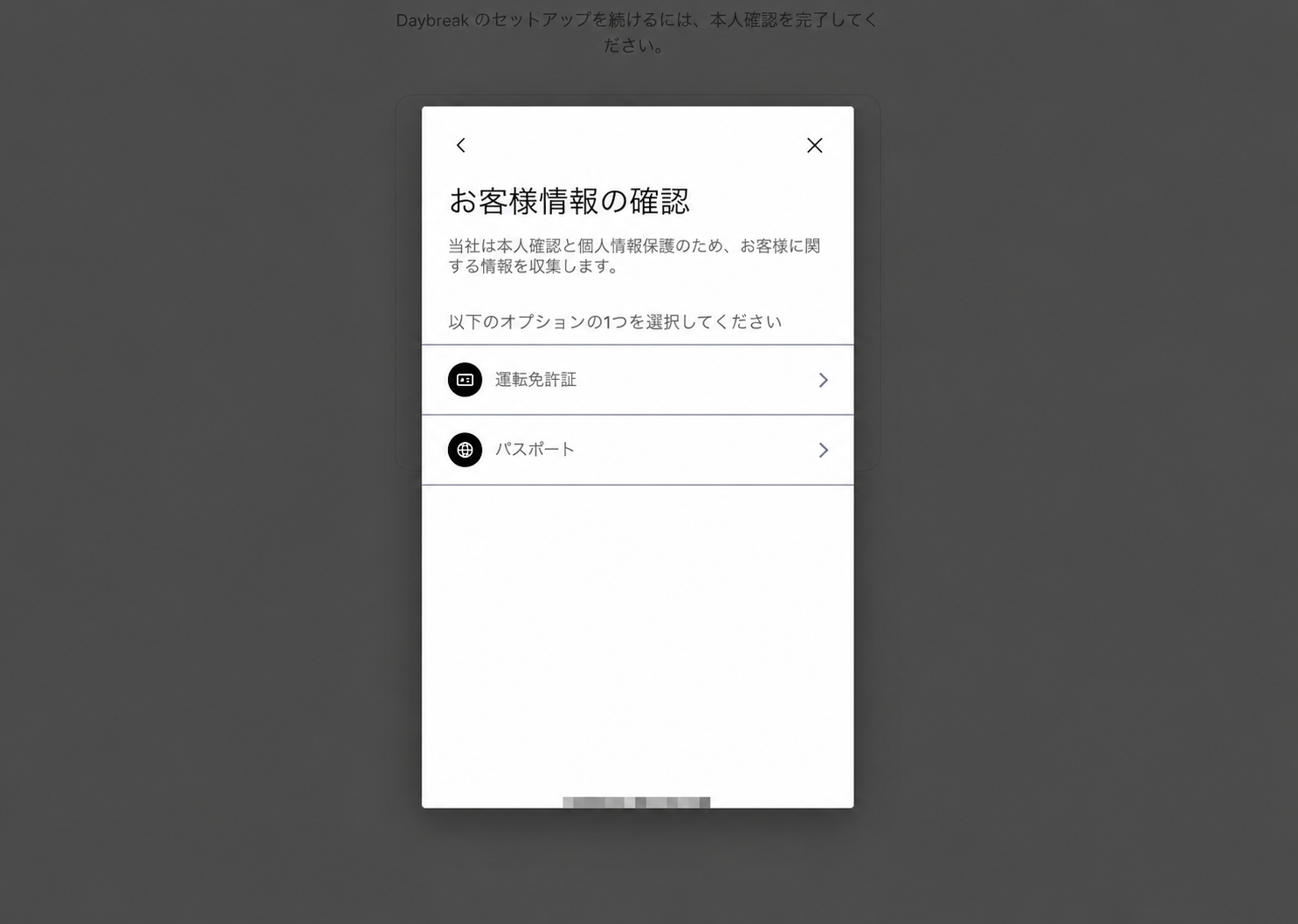
My document-selection screen offered a driver’s licence or passport. The image shows only those choices, not an identity document, document number, or selfie. Available methods may differ by account or region.
Enrolment changes how you normally sign in
The final account-protection screen showed the completed preparation items and explained what would change when I enrolled.
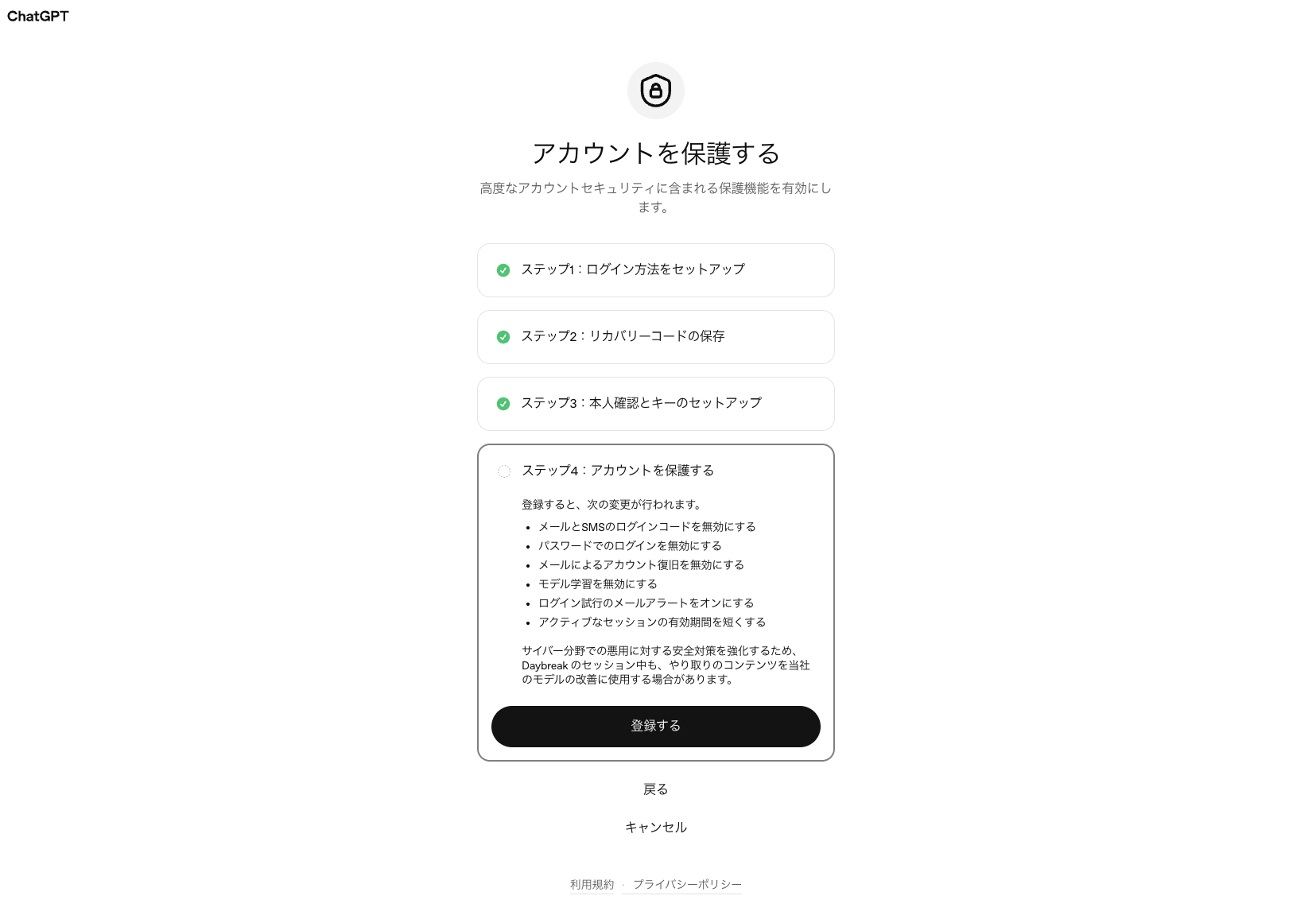
The Advanced Account Security guidance calls for at least two secure sign-in methods, with at least one usable across devices. Keep the recovery code somewhere safe.
Enrolment disables password sign-in, email and SMS sign-in codes, and ordinary email-based recovery. The guidance also says initial enrolment signs you out of your devices. Losing every usable key or passkey and the recovery code can leave you unable to recover the account.
I did need to sign back into the Codex desktop app. Completing registration in the browser did not mean the app I already had open could simply continue unchanged.
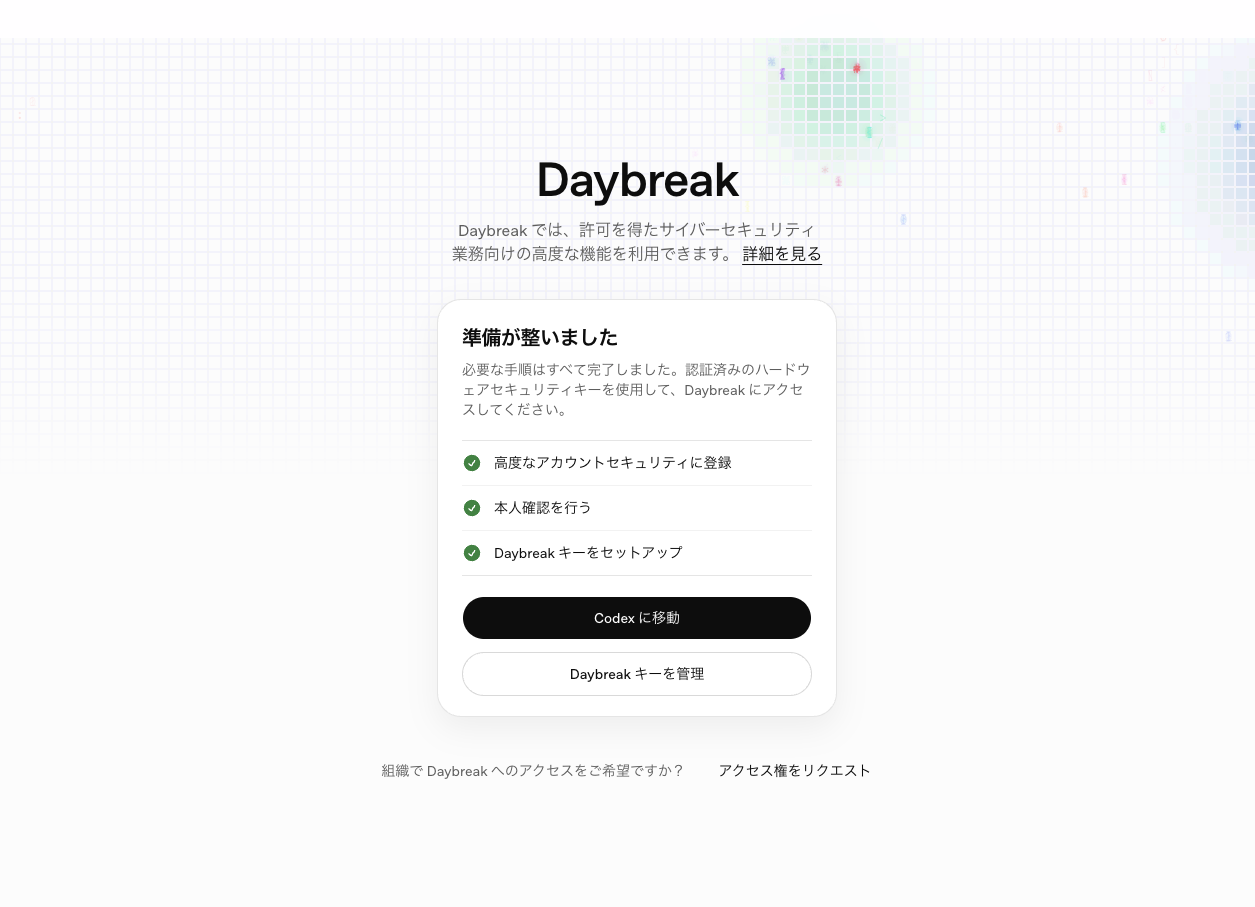
GPT-6 Sol was not enough: Codex still asked for the approved key
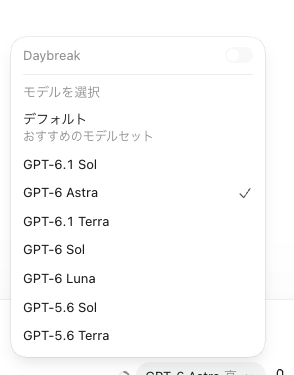
The Daybreak toggle appeared in Codex’s model menu. With GPT-6 Astra or GPT-6.1 Sol selected, I could not turn it on in my setup. A model appearing in the menu did not establish that Blue’s reduced-refusal behaviour was available.
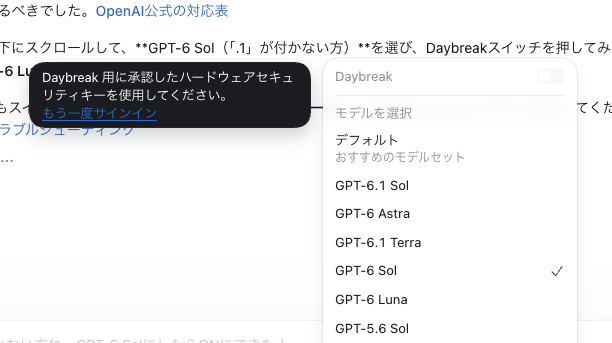
After selecting GPT-6 Sol, the toggle was still off. The message asked me to sign in again using the hardware security key approved for Daybreak. Changing the model alone had not completed the setup.

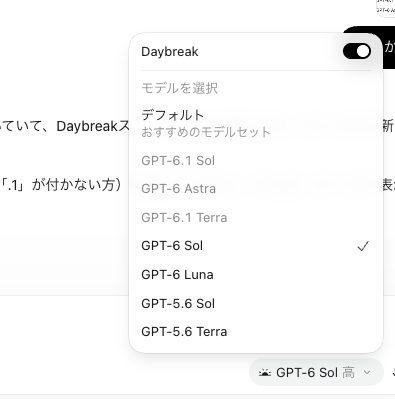
After signing in with the hardware key, I could turn Daybreak on with GPT-6 Sol selected. I did not run a controlled test isolating reauthentication from model choice, so I am not claiming that signing in again was the only cause.
The official model table checked that day listed GPT-6 Sol and GPT-6 Luna among Blue’s reduced-refusal models. GPT-6.1 Sol and Astra retained standard safeguards under Blue. A newer model was not automatically the right choice for this access tier.
OpenAI’s troubleshooting guidance also asks you to check the approved account, supported client, model, and enabled control. Before sending a request, check the model and toggle in the actual conversation, not only the completed setup page.
My first use was a bounded comparison with existing review notes
For the first piece of work, I compared existing review notes with current code I was authorised to inspect. The scope covered authentication, permissions, PDF delivery, and handling of sensitive values. It was not an attack against a public website. Internal code and specific findings are not reproduced here.
Additional candidates for investigation were added to the existing review record. I therefore cannot describe the whole exercise as making no changes at all. What I did not do was deploy a code fix, reproduce a finding in production, or run a dedicated scanner. Recording a candidate is not the same as validating and fixing it.
I did not compare this with ordinary Codex under identical conditions. This record does not establish that Blue found new vulnerabilities or improved review accuracy. For a separate approach to getting another model’s view, see my Codex and Claude cross-model review record.
A falling allowance is not a measured Daybreak multiplier
After the work, my remaining allowance seemed to have fallen quickly. I had not measured Daybreak-only consumption, however. The task also involved reading code and a long context, so that impression cannot establish a cause or multiplier.
The official pricing table checked on November 15 lists Standard-speed rates per million tokens of 100 input, 10 cached input, and 500 output credits for Daybreak Blue. GPT-6 Sol is listed at 50, 5, and 250 credits respectively.
Those are credit rates. They do not establish that an included Pro weekly allowance must drain twice as fast. The Codex usage guidance says consumption depends on factors including model, task complexity, context, reasoning, speed, and tools.
Before interpreting a remaining percentage, check which allowance it represents. I discuss that distinction further in monitoring, alerts, and weekly AI quota planning.
Prepare the account, then keep the first job small
For me, getting Blue ready meant more than registering a key: prepare secure sign-in and recovery, finish identity verification, sign back in, select a supported model, and enable the control. The data conditions also needed attention before I supplied work material.
The 5C Nano made the physical part unobtrusive. It did not remove the need to decide what I could submit, what the review could establish, and who would validate a finding before changing code.
My first job stayed within a permitted, limited comparison of existing notes and current code. Setup complete, review returned, and a verified fix deployed are separate outcomes. That is the distinction I intend to keep as I use it further.