For years I used no keyboard and no mouse. A MacBook Pro and its trackpad, and I genuinely preferred it that way.
Adding external monitors broke that. Once the screens are in front of you at eye level, the laptop is no longer where your hands go, and reaching down to a trackpad below and to the side of your actual working position is quietly terrible.
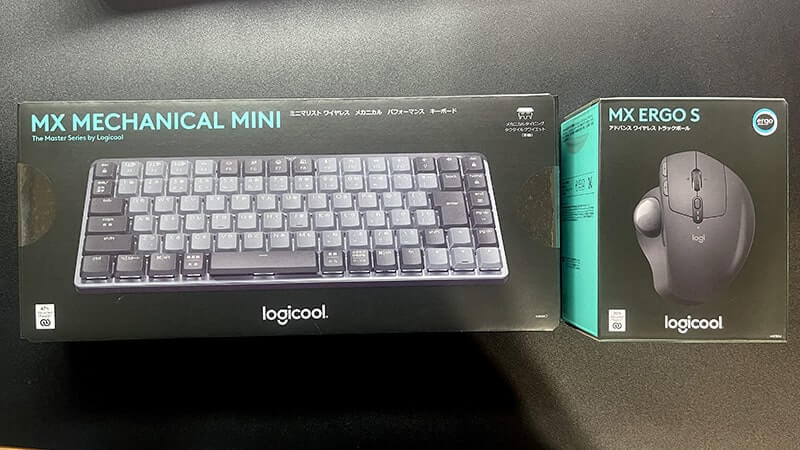
What I picked was a Logitech MX Mechanical Mini and an MX Ergo S trackball. This is six months in — including the two weeks where I thought I had made a mistake, and the one maintenance problem nobody warns you about.
Originally published in Japanese on August 23, 2025. This English version was written in September 2026.
Naming, because it is genuinely confusing
The original of this article is Japanese, and a few things do not carry over cleanly:
- Logitech is sold as “Logicool” in Japan. Same company, same hardware, different name on the box.
- Switch names differ. Japanese keyboard enthusiasts use the color shorthand — 茶軸 brown, 赤軸 red, 青軸 blue. Logitech does not use colors internationally. The three options are Tactile Quiet, Linear and Clicky. I have the tactile one, which is what “brown” means in the Japanese original. Not every region gets all three — UK, Swiss and French layouts are Tactile Quiet only.
- The KX850 model number is Japan-only, and ambiguous even there — it covers both the full-size MX Mechanical and the Mini, separated only by suffix (KX850CT is the tactile Mini). Outside Japan, search the product name rather than that number.
Both products are still current as of September 2026, with no successor to either.
Why this pair, specifically
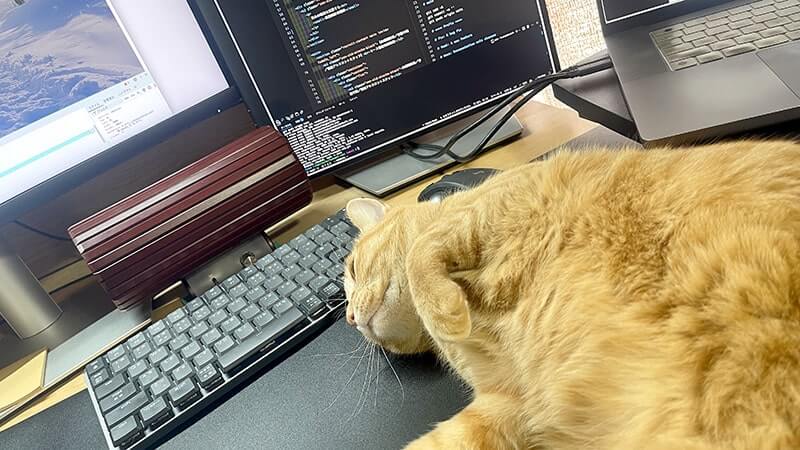
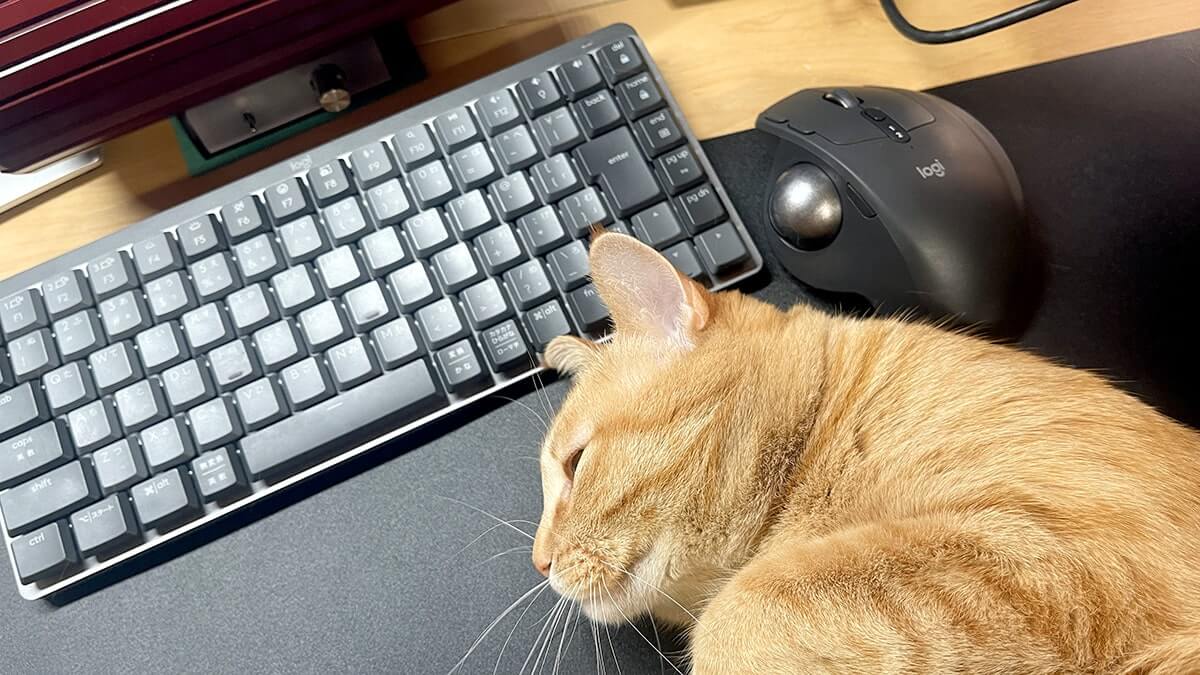
The requirement was space, and for a reason that is going to sound frivolous and is not: there is a cat.
Anyone who lives with one knows the pattern. Open a laptop, cat lies on the keyboard. Look at a monitor, cat sits in front of the monitor. Every horizontal surface is a negotiation, and any part of the desk left clear will be occupied within the hour.
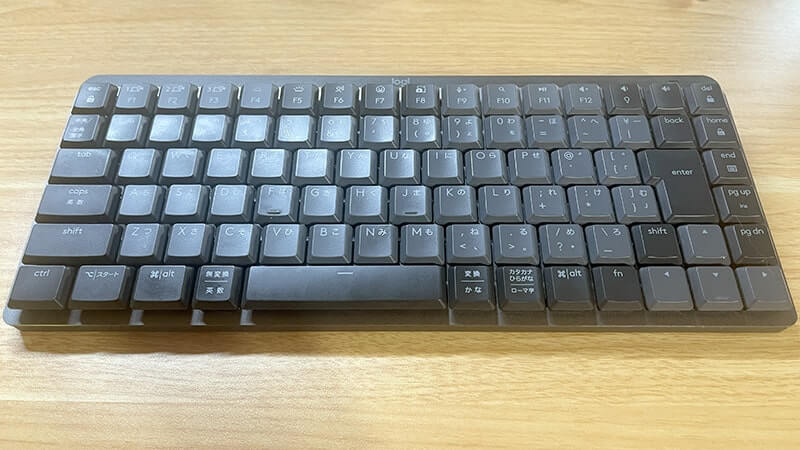
So: a tenkeyless keyboard, and a pointing device that does not need room to move. Those two constraints select a compact mechanical board and a trackball almost automatically.
MX Mechanical Mini
312.6 × 131.55 mm, 26.1 mm tall, 612 g. Tenkeyless with a tightened-up layout beyond that.
Typing
It is a different category of object from a laptop scissor-switch keyboard. The tactile switches give a small bump at actuation — 1.3 mm travel to actuate out of 3.2 mm total, 55 g force — which lands in a useful middle: enough feedback to type by feel, not so much that it becomes work.
On sound, tactile is the sensible default if you take calls. It is not silent, but it is nothing like clicky switches, which are unbearable over a microphone. Linear if you want the quietest option; clicky only if you work alone and want the noise.
The keycaps are wide and slightly dished, and typing on it is pleasant in a way I did not expect to care about after a decade of being happy with a laptop.
Wireless and battery
Bluetooth or Logi Bolt. I use Bluetooth and have had no dropouts in six months.
Battery life is the pleasant surprise, and it is entirely a function of one setting. Logitech quotes about 15 days with the backlight on and 10 months with it off. I keep it off and charge roughly monthly, which matches the low end of that with a proximity-lit board waking occasionally. Charging is USB-C and works while typing, so a flat battery is never an interruption — it is just a cable you plug in and forget.
If you want the backlight, expect to charge every couple of weeks. That is the real trade, and it is worth deciding deliberately rather than discovering.
The compact layout, good and bad
The space saving does something specific and underrated: it lets the mouse sit closer to your centerline. Your right arm is not held out wide all day, your shoulders stay square, and over a long session that is a real difference rather than an ergonomics-marketing one.
The complaint: the column of del / home / end / page up / page down immediately right of Enter. For the first few weeks I hit those constantly by accident, and it was genuinely annoying.
It resolved in an unexpected way. Because the trackball sits just to the right of that column, I can rest my hand on the mouse and reach those keys with a thumb — so page up and page down while scrolling became a thing I do on purpose. The layout I disliked turned into a small ergonomic win, purely as a side effect of the two devices being adjacent.
I bought the standard version rather than the Mac one and fixed the remaining key placement gripes with Karabiner-Elements. Worth noting that the Mac variant is Tactile Quiet only — if you want linear or clicky switches on a Mac, the standard model plus remapping is the only route.
MX Ergo S
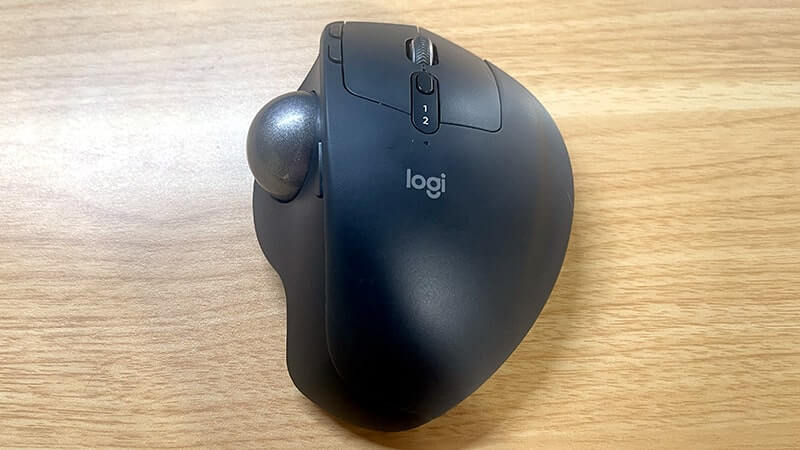
132.5 × 99.8 × 51.4 mm. 164 g on its own, 259 g with the metal base plate fitted. A thumb-operated trackball, and my first ever.

The first two weeks are bad
I want to be blunt about this because most trackball reviews skate over it. The first week is genuinely unpleasant. The pointer does not go where you intend, everything takes longer, and you will wonder whether you have wasted your money.
Around two weeks in, the thumb learns it. After that it stops being a compromise and becomes preferable. But you have to be willing to be worse at using a computer for a fortnight, and if you have a deadline that week, start on a Saturday.
The wrist thing is real
This is the reason I would buy it again. Wrist fatigue disappeared.
With a conventional mouse or a trackpad, your wrist is both steering and bearing weight, at whatever angle the desk imposes. With a trackball the hand does not travel at all — only the thumb moves — and an adjustable hinge sets the body anywhere between 0° and 20°, so the wrist sits at a more natural angle rather than flat and pronated.
Six months on I would not go back. The difference in how my hand feels at the end of a long day is not subtle.
Precision
My reason for avoiding trackballs was assuming they would be bad for fine work. That turned out to be wrong, mostly because of one button: a dedicated precision toggle that drops the pointer speed for detail work and back again with a click. Illustrator and Photoshop are fine. The tracking range is 512–2048 DPI.
Battery is a non-issue — up to 120 days per charge, and a one-minute top-up gives a day of use.
Two real drawbacks
It needs cleaning, and if you have a pet it needs cleaning often. This is the one thing I would tell anyone considering a trackball. The ball sits in a socket that collects dust, hair and skin oil, and when it does, movement gets gritty and starts skipping. Pop the ball out, wipe it and the bearings, drop it back in — thirty seconds. But with a cat shedding onto the desk, I am doing it every few days rather than every few weeks. I have decided to treat it as a prompt to take a break, which is a coping mechanism rather than a solution.
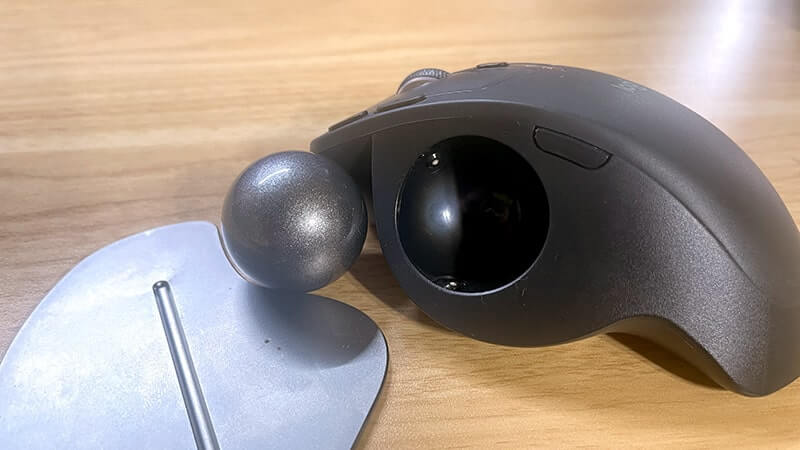
It is heavy and not portable. 259 g with the plate. That weight is why it stays put in use, and it is also why it is not going in a bag. This is a desk device.
Two buying notes. The original MX Ergo has been retired: Logitech’s US page lists it as unavailable and the Japanese page is gone entirely, so the S is the current model rather than the premium option beside it. Compared with the outgoing one it adds USB-C charging in place of micro-USB, Logi Bolt, and click switches Logitech rates as 80% quieter; the shape, tilt hinge, buttons and sensor are unchanged. One thing the spec sheet buries: Logitech ships the S without a charging cable — the US product page says “quick USB-C charging (cable not included)”. If a listing still offers the plain MX Ergo, it is old stock.
And there is an MX Ergo S Plus, sold in North America only, which is the same trackball with an extra detachable 10° wedge in the box. If you want more tilt than the built-in hinge gives and you are outside North America, that variant is not available to you.
Logi Options+ is what makes them a pair
Buying both from one manufacturer was partly laziness. It turned out to be the best part of the decision, because a single piece of software configures both.
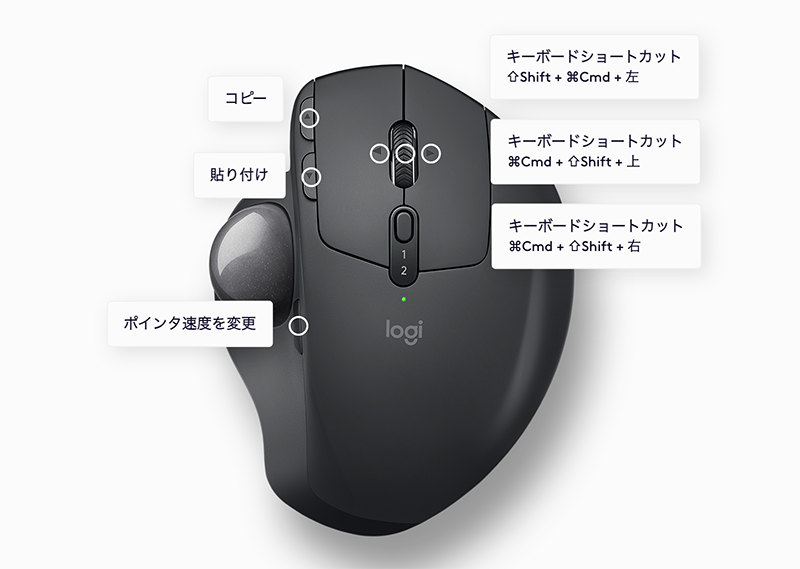
The setup that matters most to me: my displays sit left, center and right, and moving the cursor between them uses a keyboard shortcut from a window-management utility. Because Options+ can bind a keyboard shortcut to a mouse button, that jump is now a button on the trackball. Screen switching happens without my hand leaving the pointing device.
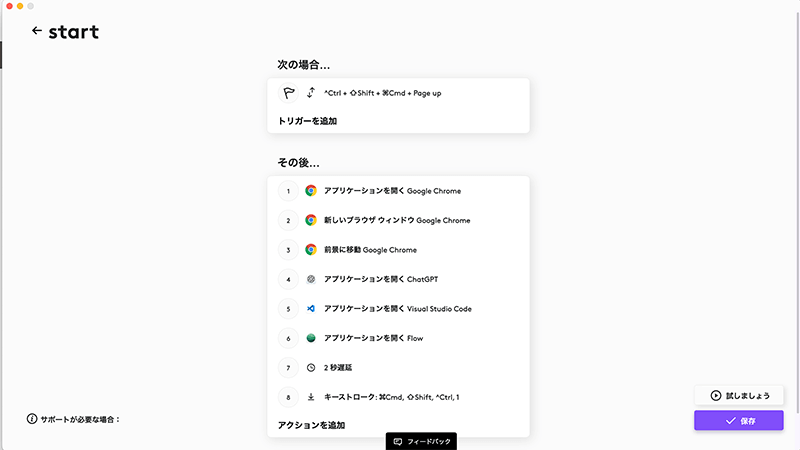
Smart Actions are the other piece — one button triggering a stored sequence of application launches and keystrokes. Small-scale desktop automation. I have per-mode layouts stored: one for writing, one for coding, one for the morning open-everything routine. Press once, the desk is arranged.
Six months in
The pairing works better than either device does alone, and mostly for physical reasons rather than software ones. The heights match, so your hands sit at one level across both. The keyboard being narrow puts the trackball within easy reach. The trackball being stationary means the keyboard can sit where it should. And the accidental discovery — thumbing page up and page down from the mouse — only exists because of how close together they end up.
My shoulders are not held wide, my posture holds better through the afternoon, and my wrist stopped complaining. If you are working on a small desk and want to stop paying for it physically, this specific combination is the one I would recommend — with the honest caveats that the trackball costs you two bad weeks up front, and a cleaning habit forever.