If you run several small web services, you probably check now and then that they are all still up. Doing it by hand is tedious, and when the services sit on different servers there is no single place to look.
This is a lightweight uptime check built entirely from Google Apps Script and a Google Sheet: fetch the status code for each URL once a day, log it, and email the result. No infrastructure, no cost, maybe twenty minutes to set up.
Originally published in Japanese on October 9, 2025. This English version was written in September 2026 and re-checked against current Apps Script documentation.
It is not a replacement for real uptime monitoring or SLA monitoring. There is no multi-region checking, no escalation, no incident history beyond a spreadsheet. As a way to stop personal projects and small client sites from failing unnoticed, it is enough.
What I actually wanted
The requirements were modest:
- Check services across different servers from one place
- Get the status code when a response is anything other than 200
- No infrastructure to maintain
- Keep a log
A monitoring service would be overkill. Apps Script plus a Sheet covers all four.
Spreadsheet setup
Two sheets:
- Monitor — the URLs to check, one per row in column A, starting at A2
- Log — appended on each run: timestamp, URL, status code, OK/NG
That is the whole data model.
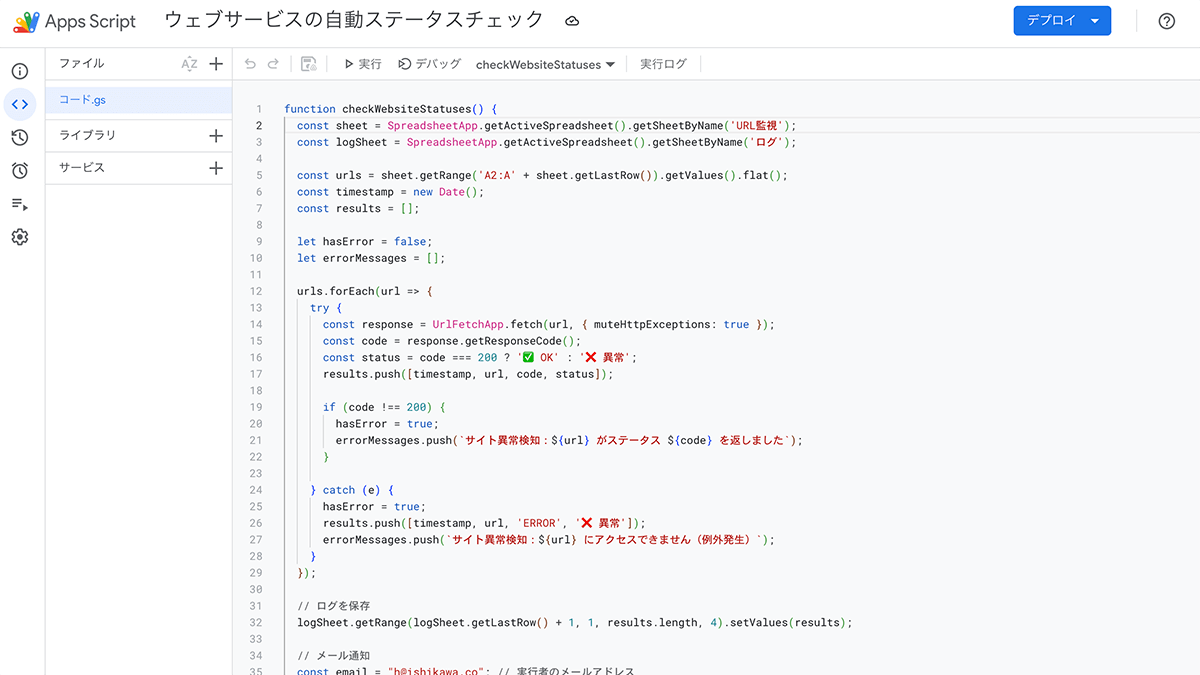
The script
Open Extensions > Apps Script from the spreadsheet and paste this in.
function checkWebsiteStatuses() {
  const spreadsheet = SpreadsheetApp.getActiveSpreadsheet();
  const sheet = spreadsheet.getSheetByName('Monitor');
  const logSheet = spreadsheet.getSheetByName('Log');

  const lastRow = sheet.getLastRow();
  if (lastRow < 2) return; // header only, nothing to check

  const urls = sheet
    .getRange('A2:A' + lastRow)
    .getValues()
    .flat()
    .filter(url => url);

  if (urls.length === 0) return;

  const timestamp = new Date();
  const results = [];
  const errorMessages = [];

  urls.forEach(url => {
    try {
      const response = UrlFetchApp.fetch(url, {
        muteHttpExceptions: true,
        followRedirects: true,
      });
      const code = response.getResponseCode();
      const status = code === 200 ? 'OK' : 'NG';
      results.push([timestamp, url, code, status]);
      if (code !== 200) {
        errorMessages.push(`${url} returned status ${code}`);
      }
    } catch (e) {
      results.push([timestamp, url, 'ERROR', 'NG']);
      errorMessages.push(`${url} is unreachable (${e.message})`);
    }
  });

  logSheet
    .getRange(logSheet.getLastRow() + 1, 1, results.length, 4)
    .setValues(results);

  const email = Session.getActiveUser().getEmail();
  const subject = errorMessages.length
    ? '[Status check] Problems detected'
    : '[Status check] All services healthy';
  const body = errorMessages.length
    ? errorMessages.join('\n')
    : 'All services responded with 200.';

  MailApp.sendEmail({ to: email, subject: subject, body: body });
}
What it does, line by line in summary:
UrlFetchApp.fetch()against every URL, collecting the response code- 200 is
OK; anything else isNG - Failures accumulate into
errorMessages, which decides the subject line - Every run appends to the Log sheet, healthy or not
Two details in fetch() worth understanding rather than copying:
muteHttpExceptions: true is the one that matters. Without it, a failing status throws instead of returning a response — which is exactly backwards for a status checker, since a 500 is the thing you are trying to observe. followRedirects: true is already the default, so it is redundant; I leave it explicit because it documents the intent. Note that following redirects means a 301 to a working page records as 200, which is usually what you want and occasionally is not.
Run checkWebsiteStatuses once manually to trigger the authorization prompt and confirm the email arrives.
Run it every morning with a trigger
In the Apps Script editor, open Triggers and add an installable time-driven trigger:
- Function:
checkWebsiteStatuses - Event source: Time-driven
- Type: Day timer
- Time: 5am to 6am
Time-driven triggers are randomized within the hour you pick — a 5am trigger fires somewhere between 5 and 6. For a daily report that is irrelevant; if you ever need exact timing, it is not the right tool.
I have it run before I get up, so the result is waiting when I check email.
Quotas: the reason not to keep adding URLs
Apps Script has hard daily quotas, and this script consumes two of them. The limits documented as of September 2026 — Google notes they can change without warning, so check the page rather than this table:
| Quota | Consumer account (gmail.com) | Google Workspace |
|---|---|---|
| URL Fetch calls | 20,000 / day | 100,000 / day |
| Email recipients | 100 / day | 1,500 / day |
| Script runtime | 6 min / execution | 6 min / execution |
| Triggers total runtime | 90 min / day | 6 hr / day |
The one that bites first is script runtime, not fetch count. Each check is a synchronous network round trip; a slow or hanging host can eat a large share of your six minutes, and a long enough list will simply time out mid-run. Note exactly what that costs you: the script collects every result and writes the whole batch to the Log sheet after the loop finishes, so a timeout leaves no log rows at all and no email — indistinguishable from the trigger never having fired, which is the failure this script exists to catch. If your list grows past a few dozen URLs, split it across multiple functions and triggers rather than raising the count in one run. Swapping the batched setValues for an appendRow inside the loop trades write quota for a log that survives a timeout.
The triggers total runtime ceiling of 90 minutes per day on a consumer account is the other one people forget, especially if this script shares an account with other scheduled scripts.
One caveat on the recipient address
Session.getActiveUser().getEmail() returns an empty string in contexts where security policy does not allow access to the user’s identity — simple triggers, custom functions in Sheets, and web apps deployed to execute as the developer, among others. Running your own script under your own installable trigger, it works.
If you would rather not depend on that, hardcode the destination or read it from script properties. It is one line either way, and it removes a class of “why did the email stop arriving” question.
Why send email on success too
The script emails on healthy runs as well as failures, which looks like noise and is deliberate.
Alert-only monitoring has a silent failure mode: you cannot distinguish “everything is fine” from “the check itself stopped running.” A trigger that hits a quota, an authorization that lapses, a renamed sheet — all of them look exactly like a quiet week. A daily all-clear turns the absence of an email into a signal.
Email over Slack, personally, because I control when I read it. That is a preference, not a recommendation.
What this is and is not
Apps Script plus a Sheet plus email gives you a usable daily uptime check at zero infrastructure cost, in one afternoon.
What you do not get: sub-daily checking, multi-region verification, alerting that reaches you when you are not reading email, response time tracking, or any distinction between “down” and “up but wrong.” A 200 that renders an error page still reads as OK here.
For a handful of personal projects and small sites, that trade is good. If any of those omissions matter to your service, use real monitoring.
References
- UrlFetchApp | Apps Script reference
- MailApp | Apps Script reference
- Installable triggers | Apps Script guides — including the note that a 9 AM trigger fires somewhere between 9 and 10
- ClockTriggerBuilder | Apps Script reference — if you would rather create the trigger in code
- Quotas for Google Services | Apps Script guides
- Session | Apps Script reference